ZTE MC888B: Enable Custom DNS via APN Request Override
12/21/2025
Overview
Many ZTE MC888B firmware variants do not expose a “Custom DNS” option in the router UI. This guide documents a safe, repeatable workaround to enable custom DNS by intercepting the APN settings request and switching DNS mode from auto to manual, then supplying prefer_dns_manual and standby_dns_manual.
This approach helped set custom DNS without rooting the device or installing additional packages, which were blocked on this model.
Device Context and Constraints
- Model: ZTE MC888B (5G/LTE CPE)
- UI did not show “Custom DNS” under network/APN settings
- SSH and package managers (apt) were blocked
- API scripts (e.g., MioNonno) initially returned failures
Attempts That Failed
- MioNonno script returned:
{
  "result": "failure"
}
- Replaying similar API calls yielded the same failure
- Enabling SSH/apt on stock firmware was not possible
Working Approach: APN Request Override
Using Burp Suite, we inspected the request made on APN save and found fields like:
dns_mode: autoprefer_dns_manual: ""standby_dns_manual: ""
By editing the intercepted request to:
dns_mode: manualprefer_dns_manual: 1.1.1.1(example)standby_dns_manual: 1.0.0.1(example)
the router accepted the change and began using the specified DNS servers.
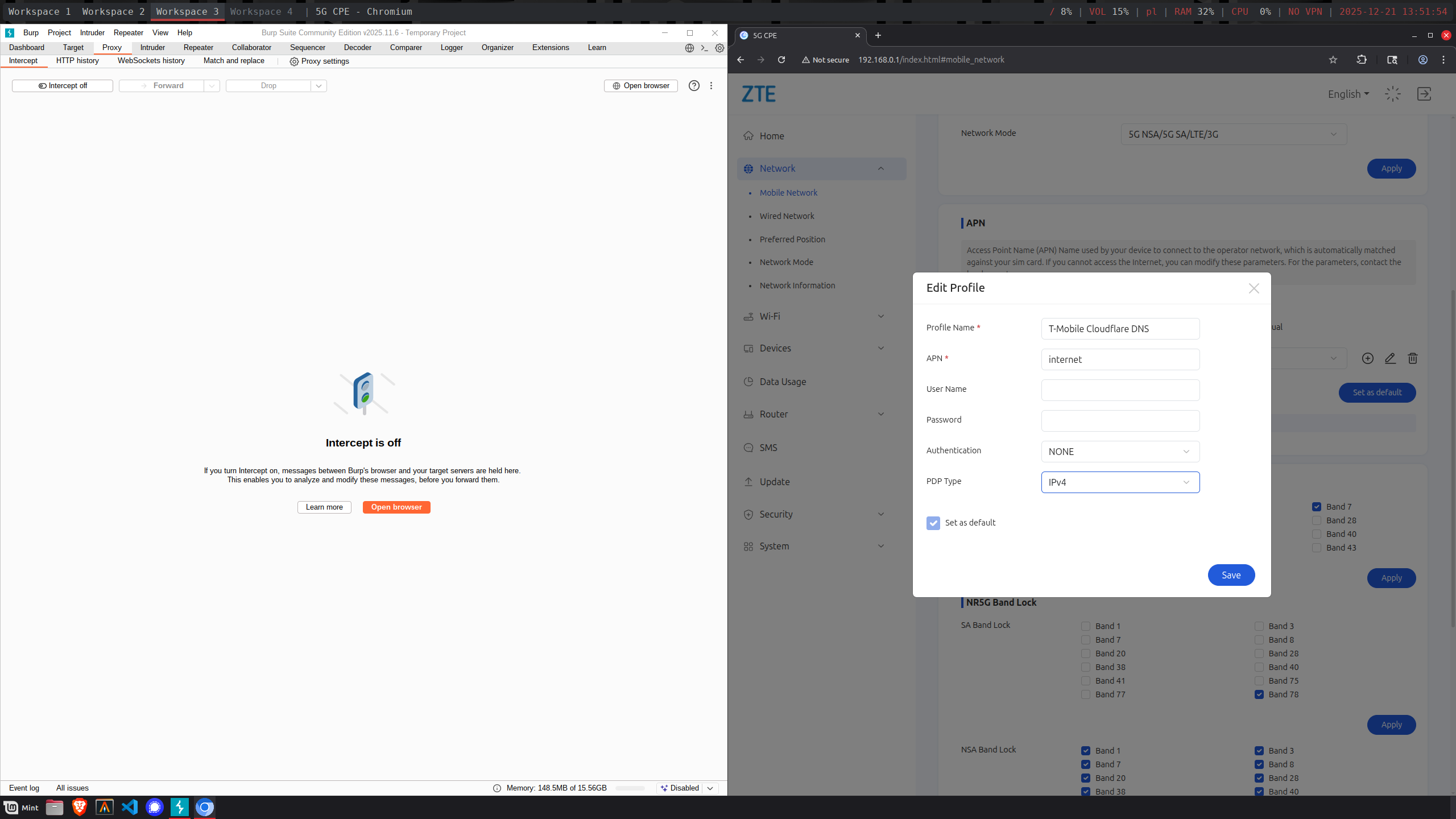
Click edit and check if intercept is on

Pass few request until you spot this one

Hit Forward and wait for result
Step-by-Step
- Start Burp Suite and set up your browser/system to proxy traffic through Burp.
- Log in to the router admin panel.
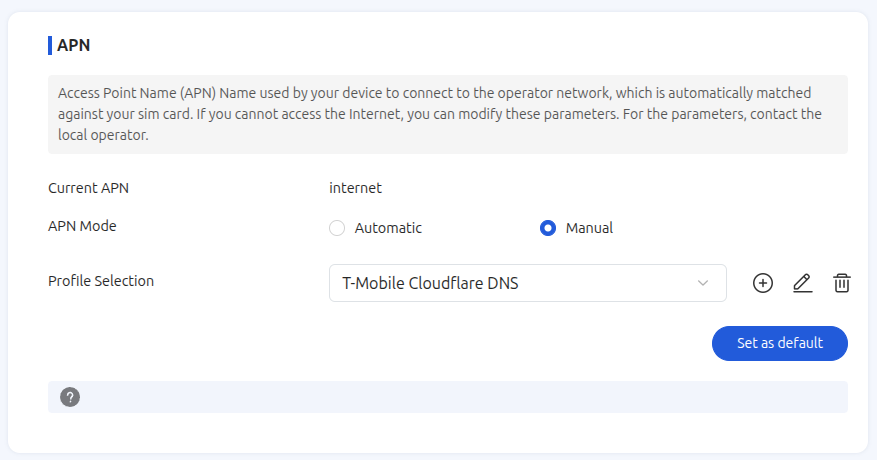
- Navigate to Mobile Network → APN (or equivalent settings page).
- Modify the current APN settings and click Save (with Intercept on in Burp).
- In Burp, edit the outgoing request:
- Change
dns_modefromautotomanual - Set
prefer_dns_manualandstandby_dns_manualto your preferred resolvers (e.g., Cloudflare, Google, Quad9)
- Change
- Forward the modified request.
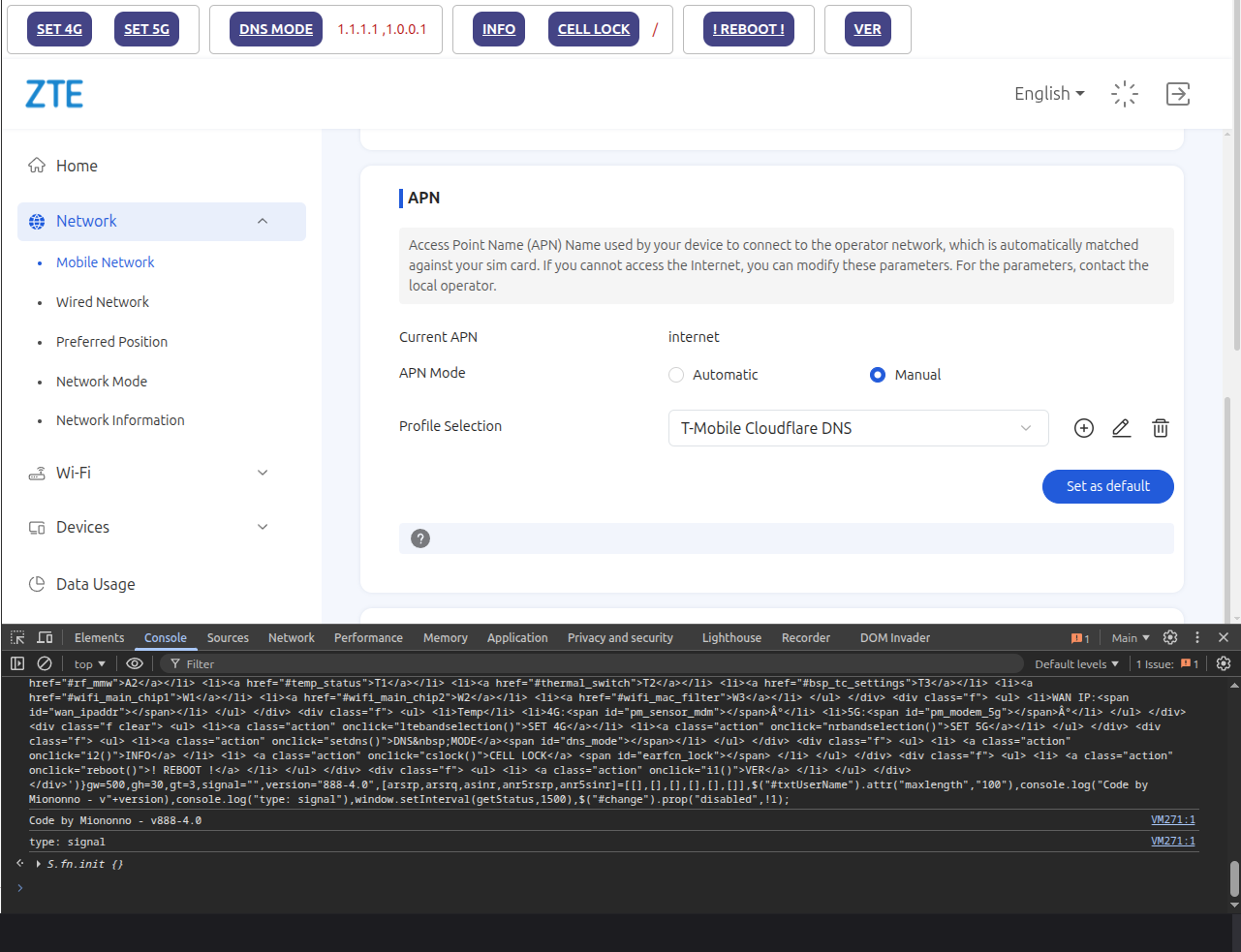
- Confirm that the panel reflects the saved APN and the router is using the new DNS.
Validation
- Rerun the MioNonno verification or your own API/readback to confirm DNS settings are applied.
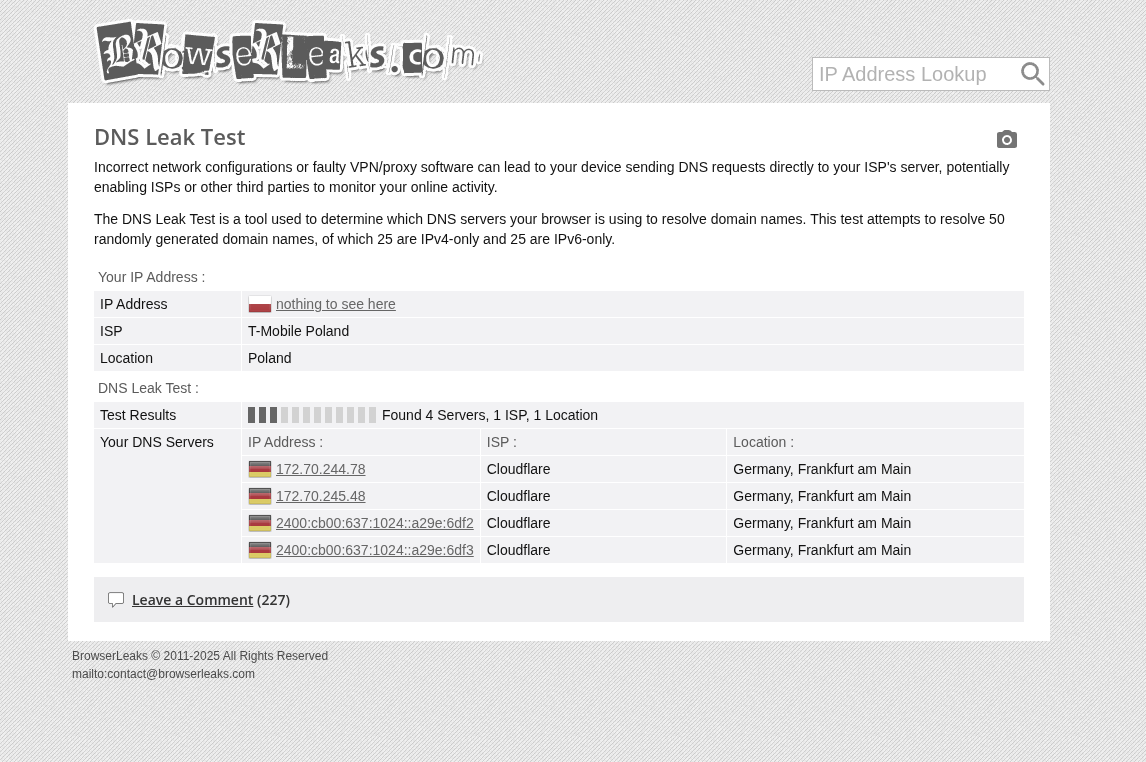
- Test name resolution from client devices; verify expected DNS behavior (e.g., DoH/DoT upstream if your chosen resolvers support it).
Troubleshooting
- If the request is rejected, ensure the APN profile allows manual DNS and that fields are correctly named.
- Some firmware versions may normalize empty DNS fields; resend with valid IPv4 (and IPv6 if supported).
- Clear browser cache or reboot the router after applying changes to ensure settings persist.
Notes and Risks
- Perform changes on hardware you own and have admin access to.
- Firmware updates may revert settings or alter field names.
- Always keep a record of original APN values to restore if needed.
- Use reputable DNS providers and consider privacy + filtering needs.
FAQs
- Will this survive a reboot?
- Yes tried it and it still had same dns.
- Can I set IPv6 DNS?
- If the APN and firmware support IPv6, add
dns1_v6/dns2_v6fields where available.
- If the APN and firmware support IPv6, add
- Is this the same as rooting?
- No. This method modifies saved APN parameters via the router’s own UI request path.
Summary
When the MC888B UI omits custom DNS, intercepting and editing the APN save request is a practical workaround. It avoids rooting, works on stock firmware, and can be validated quickly.